Quick Start
- Open Search Avatars or Search Worlds in the sidebar.
- Enter a search term and press Search.
- Use Filter, Sort, and Direction to refine results.
- Use the heart icon to save items in your favorites list.
This guide explains everything users need to use VRCDB effectively: searching avatars, discovering worlds, using filters, saving favorites, and opening useful links.
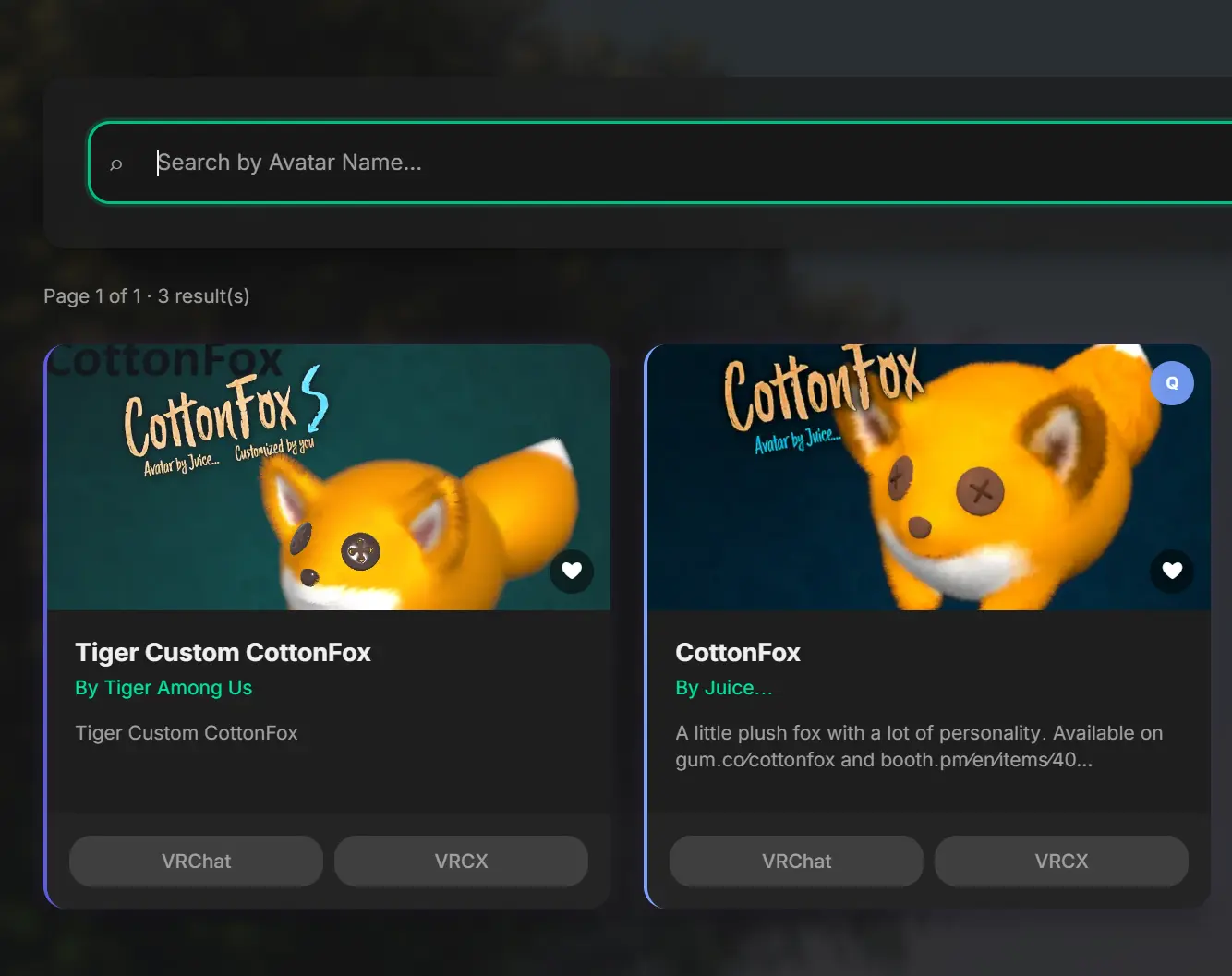
Use the avatar search page for broad discovery. Enter an avatar name, keyword, or switch to author mode to search by creator. You can also limit results by platform.
The cards show key details and let you open the avatar detail page with one click.
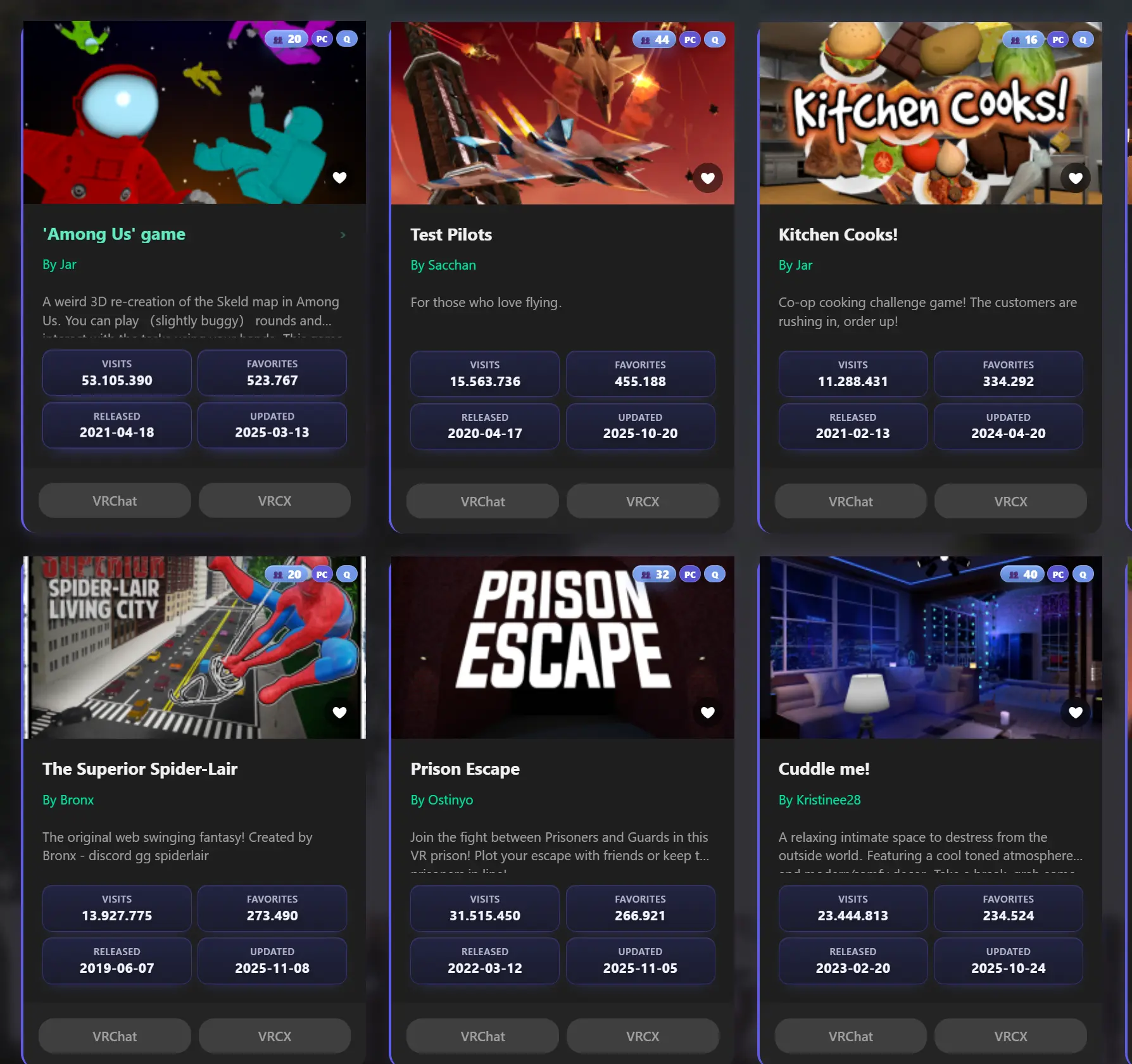
World search supports both broad and precise lookup. You can search by world name, description, or author and combine this with category tags.
Use the controls to narrow down results:
You can store favorite avatars and worlds for faster access later. Click the heart icon on a card to add or remove an item.
Favorites are available from:
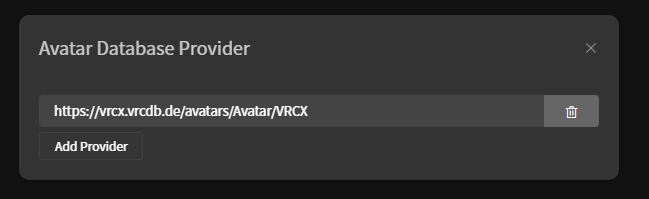
The sidebar gives direct access to supporting resources like Discord, VRChat World, and VRCX. These links are intended for quick actions while browsing.
If you are new, start with the Resources page and then return to this guide for usage tips.
Use a broad term first, then refine with Category/Tag + Filter + Sort + Direction.
It shows worlds with recent activity in the last 30 days.
Yes. Enable author mode on avatar/world search pages and enter the creator name.
No. This documentation is intentionally user-facing and does not include internal implementation details.